Email Templates
Allegro sends transactional emails on your behalf — things like magic sign-in links for your members. Email Templates let you customize the look and feel of those emails so they match your brand.
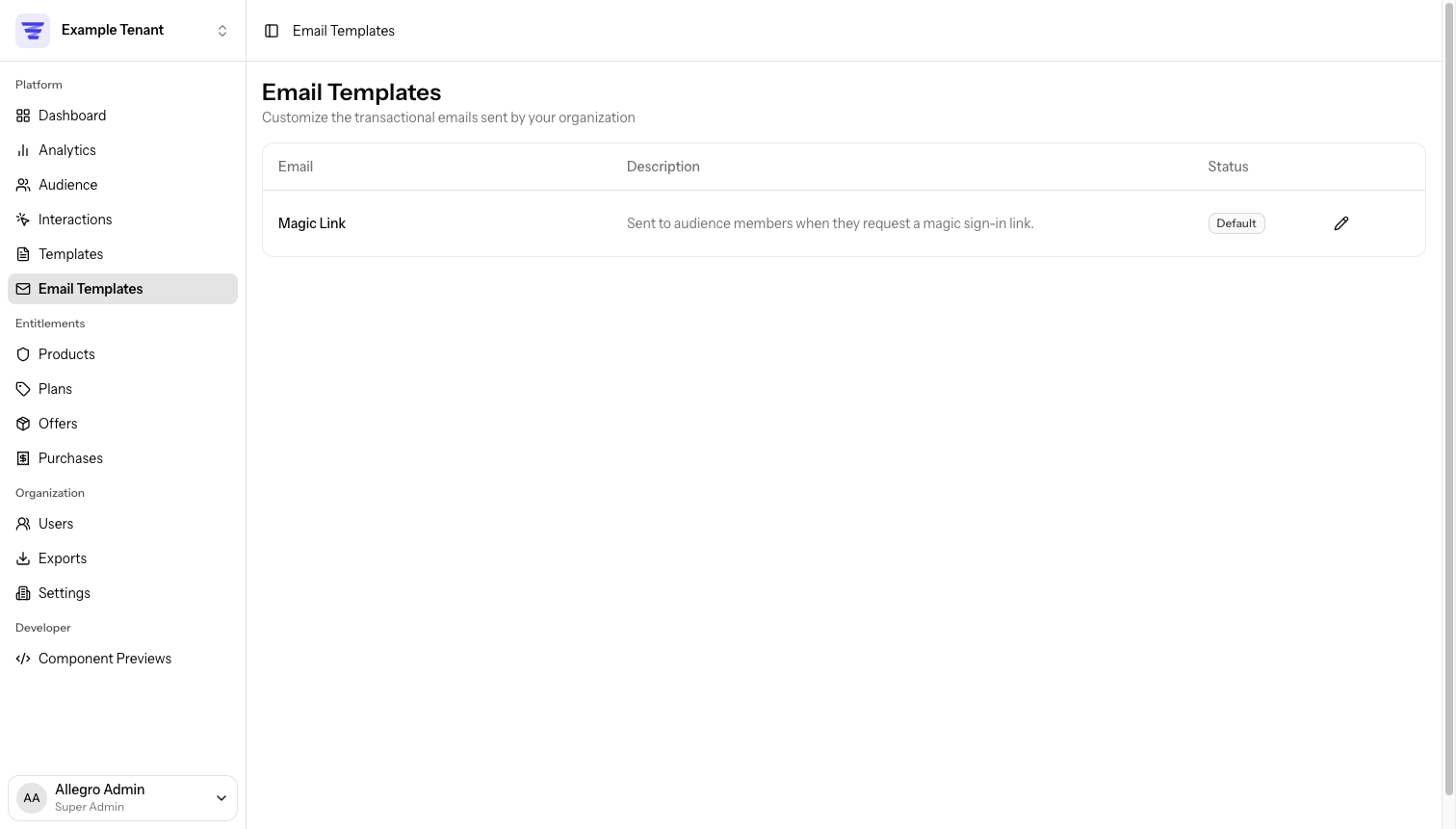
Built-in Email Types
Allegro includes the following transactional email types. Each one comes with a default template that's used until you save your own version.
| When it's sent | |
|---|---|
| Magic Link | When a member requests a passwordless sign-in link. Includes the link and expiry. |
Additional email types may appear here as Allegro gains new features. Any new type starts with a default template and can be customized in the same way.
Template Statuses
Each template in the list shows one of two statuses:
| Status | Meaning |
|---|---|
| Default | Allegro's built-in template is in use — nothing changed. |
| Customized | You've saved your own HTML for this email type. |
Editing a Template
- Go to Email Templates in the sidebar.
- Click the pencil icon next to the email type you want to change, or click the email name directly.
- The editor opens with an HTML Editor on the left and a live Preview on the right.
Writing Your HTML
The editor accepts standard HTML. Write the body of your email and Allegro wraps it in a message automatically.
To include dynamic content — like the member's name or a sign-in link — use
variable placeholders in the format {% variable_name %}. Start typing {% and
the editor will suggest available variables. You can also click a variable chip
in the Available Variables panel below the editor to insert it at your
cursor.
Available Variables
Each email type has its own set of variables. The variable panel lists every available placeholder and describes what it contains. The preview panel fills in example values so you can see how the finished email looks.
Shared variables
A few variables are available in every template, regardless of email type:
| Variable | Resolves to |
|---|---|
{% property_name %} | The property the email was sent through, falling back to the organization name when there is no property context. |
{% organization_name %} | Always your organization's name. |
The built-in templates use {% property_name %}, so out of the box an email
reflects the property it was sent through and shows the organization name
elsewhere. If you run a single brand with no properties, {% property_name %}
and {% organization_name %} produce the same value.
Saving
Click Save when you're happy with the result. The button stays disabled until you make a change. After saving, the template's status updates to Customized.
When saving an existing customization, a dialog appears asking for an optional revision note. Use this to describe what changed (e.g., "Updated footer copy"). The note is attached to that saved version in the revision history. You can leave it blank if you don't need a record of the change.
Revision History
Every save to an existing customization creates a revision. Revisions let you browse past versions of the template and restore any of them if something goes wrong.
Viewing Revisions
Click Show Revisions in the editor toolbar to open the revision history modal dialog. It lists saved versions of the template, newest first. Each entry shows the revision number, who saved it, when it was saved, and any note that was added. If there are more revisions than fit in the initial list, click Load More to see older entries.
Click a revision to open its detail view. You'll see the full subject line and HTML body as they were at that point, along with a rendered preview.
Restoring a Revision
From a revision's detail view, click Restore this revision. Optionally add a restore note to describe why you're rolling back, then confirm. Allegro replaces the current template with the restored content and records a new revision entry so the restore itself is part of the history.
Restoring does not delete more recent revisions — it adds a new revision on top of the existing history, making the restore itself reversible.
Sending a Test Email
Click Send Test Email to send a rendered copy of the template to your own email address. Allegro fills in example values for all variables so you can check how the email looks in a real inbox.
The test email uses the last saved version of the template. If you have unsaved changes in the editor, save first and then send the test.
Resetting to the Default Template
Want to start over? You can discard your customization and restore Allegro's built-in template:
- Open the template editor.
- Click Reset to Default (only visible when a customization exists).
- Confirm the prompt — your custom HTML is removed and the default template is restored.
Resetting permanently removes your saved customization and its entire revision history. There is no way to recover previous versions after a reset. If you think you may want the content later, copy your HTML somewhere safe before resetting.
Allegro delivers emails through Amazon Simple Email Service (SES). Your templates won't have any effect until SES credentials are configured. Head to Organization Settings → Email to set up your Access Key, Secret, and Region. See Settings for more details.
For details on who can manage email templates, see Permissions.
Related Links
- Settings — configure your AWS SES credentials for email delivery.
- Authentication — learn about magic links and other sign-in methods that trigger transactional emails.