Audience
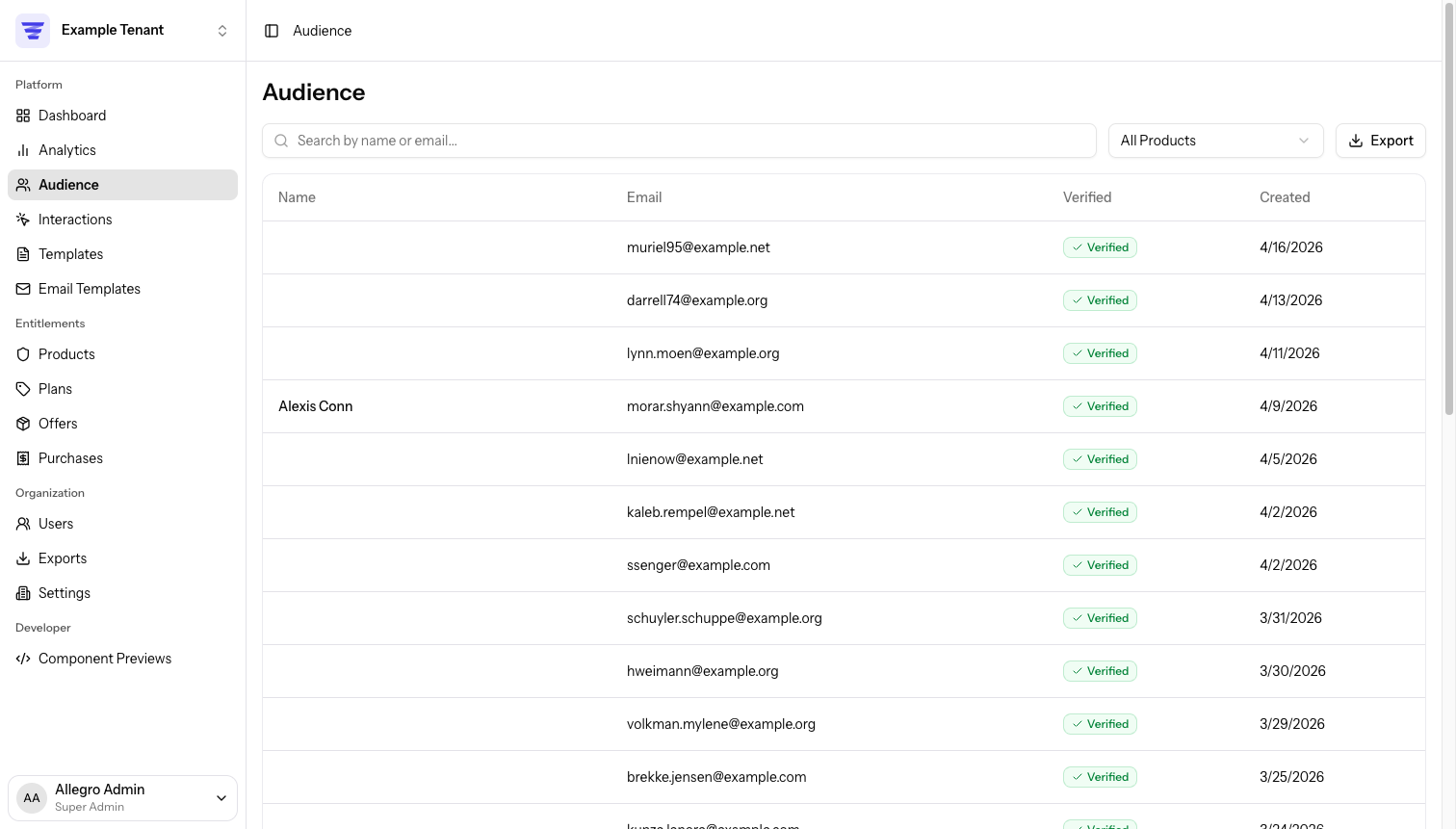
The Audience is your contact database. Every person who interacts with your site through Allegro is recorded here as a member. Use the Audience section to browse, search, and manage everyone who has signed up, logged in, or been identified on your site.
How members are created
Most members are created for you. Allegro creates a member record automatically when someone:
- Signs up through a registration form or reg wall on your site.
- Logs in with a magic link or social login (Google, Apple, etc.).
- Is identified by your backend using an external user ID.
If someone signs up or logs in with an email that already belongs to an existing member, Allegro links the activity to that member instead of creating a duplicate.
You can also add a member by hand from the dashboard — useful when you already know someone's email and want a profile ready before they first sign in.
Adding a member
If your role can manage the audience, an Add Member button appears at the top of the Audience page. (Viewers don't see it.) Click it to open the Add Audience Member dialog:
- Email (required) — must be a valid address that isn't already registered to another member. If it is, Allegro shows "That email address is already registered to another audience member." and keeps the dialog open.
- Name (optional) — leave it blank to add the member by email alone.
Click Add Member to create the profile and open it. A member added this way starts out unverified — toggle Email verified on their profile once you've confirmed the address. The creation is recorded in the member's activity history.
Browsing members
The Audience index lists every member in your organization, sorted by most recently added. Each row shows the member's avatar, display name, email address, and verification status.
Next to the name, a small icon shows how the member signed up — Google, Facebook, or Apple when they used social login, or a globe icon for any other provider. Hover over an icon to see a Signed up with {Provider} tooltip. Members who only ever used email or magic links show no icon, and a member who linked more than one provider shows an icon for each.
Searching members
Use the search bar above the list to find a member by name, email address, or member ID. Name and email match on any part of the value, so a partial term works. A member ID must be the member's full ID — paste the exact value (for example, from a URL or an export) to jump straight to that member.
Search combines with the filters below, and the Export button exports exactly the members that match your current search and filters.
Filtering by verification status
Use the filter at the top of the list to narrow results by email verification status: All, Verified, or Unverified.
Filtering by Product
Use the filter at the top right of the table to narrow audience members by those who have active entitlements to a specific product.
Exporting members
Use the Export button to export the members that match your current search and filters as a CSV. The export is generated in the background; Allegro emails you a download link when it's ready, and the file is also available on the Exports page for 7 days. Alongside each member's core details, the file summarizes their active products and entitlements, purchases, login providers, and every user attribute your organization has defined. See Exports for the full column list.
Viewing a member profile
Click any row to open that member's profile. The header shows:
- Avatar — auto-generated from their email via Gravatar.
- Display name — the member's name, or their email if no name has been set.
- Email — their email address.
- Email verified — whether they have completed email verification.
- Last seen — how long ago they last generated an event (e.g. "3 days ago"), or "Never" if no events exist yet.
The profile is organized into tabs:
| Tab | Contents |
|---|---|
| Overview | Profile summary, key dates, and member metadata |
| Activity | Full event history, newest first |
| Entitlements | Active and past entitlements for this member |
| Purchases | Completed purchases, with refund actions for eligible purchases |
| Sessions | Device sessions for this member, newest first |
| Sync | External data provider sync status and manual re-sync controls |
| Data | Raw member data and external profile records |
Each tab has its own URL (e.g. /audience/{id}/activity) so you can link
directly to a specific view or use the browser back/forward buttons to navigate
between tabs.
Activity history
The Activity tab shows the member's full event history, listed newest first. Events load as you scroll.
Each entry shows what the member did (e.g. "signed up", "viewed page"), the relevant subject where applicable (e.g. a page URL), and how long ago it happened.
Click any activity row to open a detail modal showing all raw event attributes recorded for that event.
Events are tracked automatically by the Allegro SDK and your site's instrumentation. You don't manage event types from the admin UI — they are recorded as members interact with your site.
Activity history is kept for one month. Events older than that are removed automatically.
Purchases
The Purchases tab lists every completed purchase for the member, sorted by most recent. Each row shows the plan name, the amount charged, and the date. Click a row to open the full purchase detail.
Pending or abandoned checkout sessions are not shown here — only purchases that reached a completed state appear in this list.
To browse, filter, and export purchases across your whole organization, use the Purchases page instead.
Refunding a purchase
Admins can issue a full refund for any completed purchase directly from the purchase detail page:
- Open the Purchases tab on a member's profile and click the purchase you want to refund.
- Click Refund (only visible when the purchase status is Completed).
- A confirmation dialog appears. By default, the member keeps their access — toggle Revoke member's access if you also want to remove the associated entitlement.
- Confirm the refund. The purchase status updates to Refunded, the refund ID appears in the Details section of the purchase, and the refund is recorded in the purchase's Activity timeline.
Once refunded, the Refund button is no longer available for that purchase.
Refunds are processed through your connected payment provider. Make sure a payment provider is connected in Organization Settings → Payment Providers before attempting a refund.
Entitlements
The Entitlements tab shows every entitlement the member holds — both active and past. Each entry shows the product name, start date, end date (if any), and current status.
From this tab you can also grant a new entitlement or revoke an existing one. See Entitlements for full details.
Sessions
The Sessions tab lists the device sessions recorded for the member, newest first. A session is created whenever the member is identified on your site, requests or validates a magic link, exchanges a checkout token, or has a session generated for them from the admin.
Each row shows:
- Location — the approximate city and country derived from the session's IP address, or Unknown location when no IP was captured.
- Status — an Authenticated badge when the session belongs to a logged-in member, or Unauthenticated when it does not.
- Created — when the session was first recorded.
If the member has no recorded sessions yet, the tab shows No sessions found.
Sync status
The Sync tab shows each registered external data provider and the last time it was synced for this member. Use Re-sync now to trigger an immediate sync for any provider without waiting for the next scheduled run.
Expand a provider to see the full external profile Allegro stored for this member. To drill into a large profile, hover the JSON and click the search icon to open a filter bar, then enter a path to show just the value you want:
- Use dot notation for nested fields (
address_primary.city) and array indexes (pledges.0.amount). - Use
*as a wildcard to match every item in an array (pledges.*.amount).
When a path matches, only the matched value is shown (with a result count for
array matches); when it doesn't, a No match for … line appears. The active
path stays visible as a chip in the header even when the row is collapsed, and
the copy button copies exactly what's displayed. Press Esc to clear the
filter.
For details on how sync providers work, see the Audience Member Sync platform guide.
Editing a member
On a member's profile page you can:
- Edit the email address. Click the pencil icon next to the member's email to open the Edit Email Address dialog, enter the new address, and save. The address must be a valid email and must not already belong to another member in your organization — if it does, Allegro shows "That email address is already registered to another audience member." and keeps the current value. Changing the email leaves the member's verification status untouched.
- Toggle email verification. Flip the Email verified switch and save.
A member's name is still set through on-site interactions or the Allegro API, not the admin profile.
Deleting a member
To permanently remove a member, open their profile and choose the delete action. You'll be asked to confirm before anything is removed.
Deleting a member is permanent. Their profile, activity history, and all associated data are removed and cannot be recovered.
Related
- Authentication — How members authenticate with magic links and OAuth
- Event Tracking guide — How events are sent from your site to Allegro