Local Template Preview
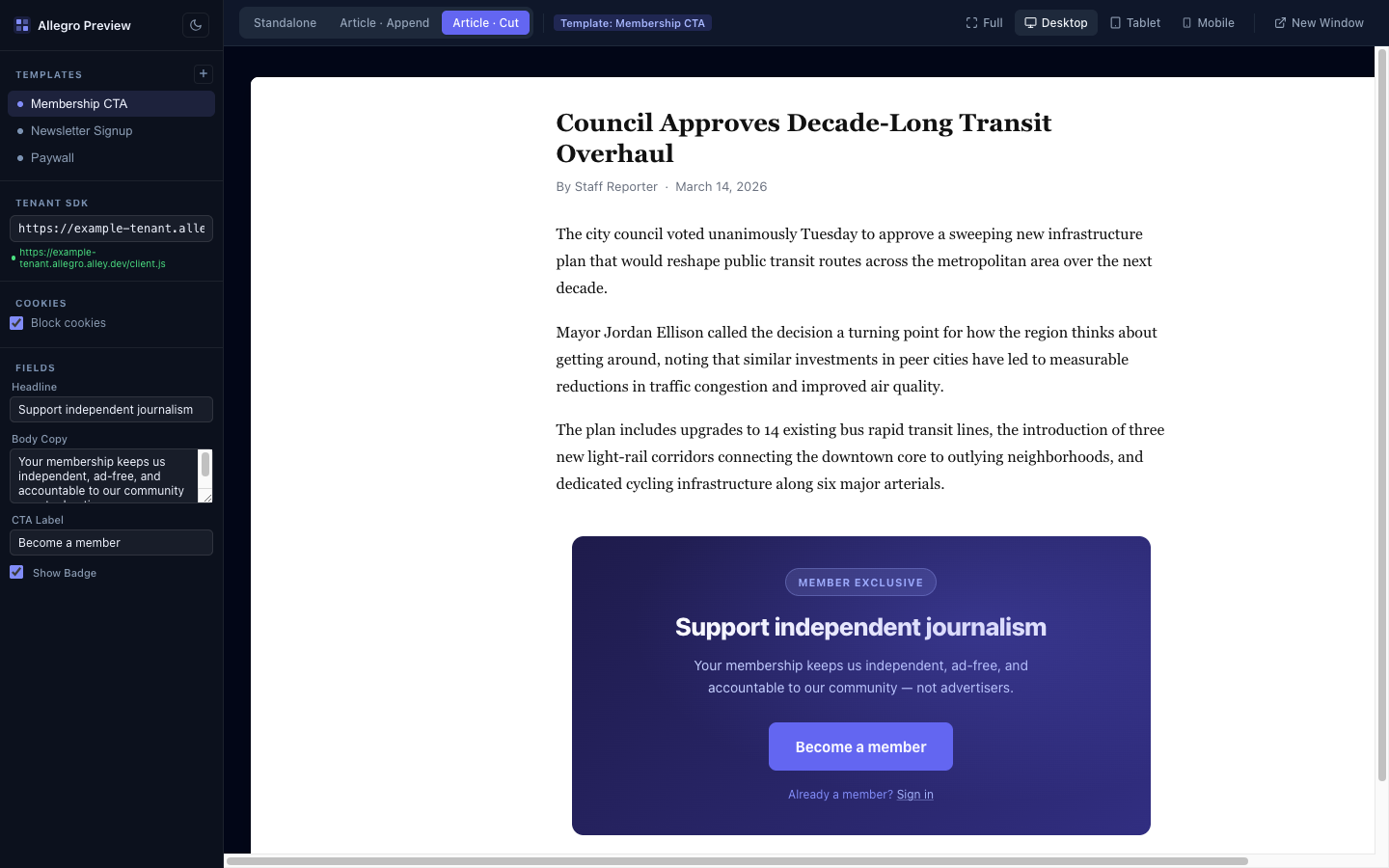
allegro-preview is a local dev server that renders your Allegro templates exactly as they appear in production — including field substitution, shadow DOM isolation, and preview scenarios. Changes to your template files reload the preview instantly.
Usage
Run from inside any template folder:
npx @allegrocdp/preview@dev
Or point it at a folder explicitly:
npx @allegrocdp/preview@dev ./path/to/my-template
The server starts, prints its URL, and opens your browser automatically.
Options
| Option | Default | Description |
|---|---|---|
path | Current directory | Path to the template folder |
-p, --port <number> | Random available port | Port to listen on |
--tenant <url> | (none) | Tenant base URL for Allegro API requests |
Example with options:
npx @allegrocdp/preview@dev ./my-template --port 3000 --tenant https://allegro.example.com
Template Folder Structure
The preview server expects a folder with the following files:
my-template/
├── index.html       # Template markup
├── index.css        # Template styles
├── index.js         # Template JavaScript (optional)
└── template.json    # Field definitions and metadata (optional)
index.html supports {% field_slug %} placeholders — see Field Placeholders for full details on the substitution syntax.
Defining Fields
Add a template.json file alongside index.html to define the template's name and editable fields. Each field becomes an input in the preview sidebar, and changing a value re-renders the preview immediately without a full page reload.
See template.json for the full manifest schema and field types.
Scenarios
The toolbar lets you preview your template across different scenarios — built-in article placements and your own custom host pages. See Preview Scenarios for the built-in scenarios and how to define custom ones.
Device Breakpoints
The toolbar also includes a device selector for testing responsive layouts:
| Device | Viewport width |
|---|---|
| Full | Fills available width |
| Desktop | 1280px |
| Tablet | 768px |
| Mobile | 390px (max-height 812px) |
Live Reload
The server watches index.html, index.css, index.js, and template.json for changes. Any edit triggers an automatic refresh of the preview — no manual reload needed.
Multiple Templates
If your project contains multiple template subfolders (each with their own index.html), the preview server detects them all and shows a template selector in the sidebar. The URL hash updates to reflect the active template, so you can bookmark or share a direct link.
For example, a project with this structure:
my-project/
├── header-banner/
│   ├── index.html
│   └── index.css
└── inline-cta/
    ├── index.html
    ├── index.css
    └── template.json
Run from the project root and switch between templates in the UI:
npx @allegrocdp/preview@dev ./my-project
Tenant URL
Pass --tenant when you need the preview to load Allegro web components that make API requests (for example, <allegro-login-form>). The value is injected into the SDK loader, which normally reads it from the script tag served by Allegro itself.
npx @allegrocdp/preview@dev --tenant https://allegro.example.com
Without a tenant URL, static templates render fine, but components that call the Allegro API will fail silently.
Your tenant URL preference is saved to localStorage so you don't need to pass it every time you restart the server on the same machine.